While many users interact with Model Context Protocol (MCP) through the Claude Desktop, the real power lies in building your own custom clients. This allows you to integrate MCP servers directly into your own applications, chatbots, or specialized GUIs. By using LangChain and Python, you can create a seamless connection between Large Language Models (LLMs) and various tools, whether they are hosted locally or remotely.
What is an MCP Client? #
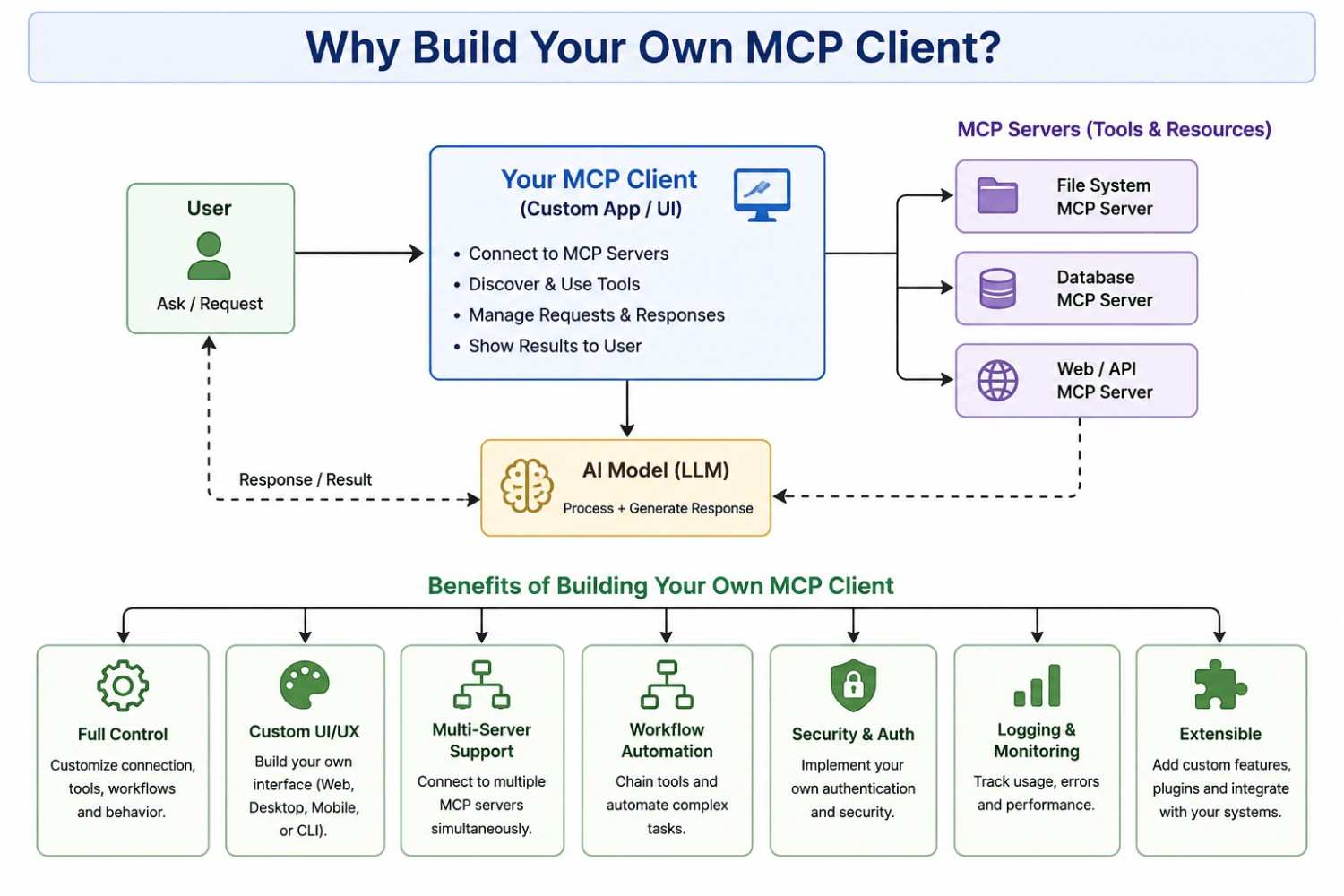
An MCP (Model Context Protocol) Client is a component that enables Al applications (like chatbots) to communicate with MCP servers. While platforms like Claude Desktop come with built-in MCP clients, building your own client allows you to:
- Create custom chatbots with MCP integration
- Connect to multiple MCP servers simultaneously
- Build specialized Al applications with tool access
- Integrate MCP capabilities into existing applications
Why Build Your Own MCP Client? #
MCP Client Development Approaches #
When building an MCP (Model Context Protocol) client in Python, developers have several options depending on their project’s requirements. Some approaches provide complete control over the MCP protocol, while others focus on simplifying development or integrating MCP with AI frameworks. The three most common approaches are:
- Official MCP Python SDK
- FastMCP
- LangChain MCP Adapters
Let’s explore each approach in detail.
2.1 Official MCP Python SDK #
The Official MCP Python SDK is the reference implementation for building MCP clients and servers in Python. It provides direct access to the Model Context Protocol, allowing developers to establish connections, initialize sessions, discover available tools, invoke tools, and communicate with MCP servers using the official protocol.
Since this SDK exposes the protocol at a lower level, it offers maximum flexibility and complete control over MCP communication. Although it requires more code and a deeper understanding of the protocol, it is the best choice for developers building custom integrations or enterprise-grade applications.
Example #
from mcp import ClientSession, StdioServerParameters
from mcp.client.stdio import stdio_client

server_params = StdioServerParameters(
    command="python",
    args=["server.py"]
)

async with stdio_client(server_params) as (read, write):
    async with ClientSession(read, write) as session:
        await session.initialize()

        tools = await session.list_tools()

        print(tools)
How It Works #
- Configure the MCP server using
StdioServerParameters. - Connect to the server using the
stdio_client. - Create a
ClientSession. - Initialize the session.
- Retrieve the list of available tools from the server.
| Advantages | Limitations | Best For |
|---|---|---|
| Full control over the MCP protocol | More verbose code | Custom MCP clients |
| Access to all official MCP features | Steeper learning curve | Enterprise applications |
| Highly customizable | Requires understanding of MCP concepts | Advanced integrations |
| Suitable for production applications | More boilerplate compared to higher-level libraries | Developers who want full protocol control |
2.2 FastMCP #
FastMCP is a high-level Python framework that simplifies both MCP server and client development. Instead of dealing with low-level protocol details, developers can use a clean and intuitive API to connect to MCP servers, discover tools, and invoke them with minimal code.
FastMCP significantly reduces development time and is an excellent choice for rapid prototyping, proof-of-concept projects, and developers who want a more developer-friendly experience.
Example #
from fastmcp import Client

async with Client("server.py") as client:

    tools = await client.list_tools()

    result = await client.call_tool(
        "add",
        {
            "a": 5,
            "b": 3
        }
    )

    print(result)
How It Works #
- Create a FastMCP client.
- Connect to the MCP server.
- Retrieve all available tools.
- Invoke a tool by passing its name and parameters.
- Receive the tool’s response.
| Advantages | Limitations | Best For |
|---|---|---|
| Very simple API | Less protocol-level control than the Official MCP SDK | Beginners |
| Less boilerplate code | Abstracts many implementation details | Rapid application development |
| Faster development | Some advanced protocol features may require the Official MCP SDK | Prototype applications |
| Supports local and remote MCP servers | — | General-purpose MCP clients |
| Excellent for rapid prototyping | — | — |
2.3 LangChain MCP Adapters (Recommended for AI Applications) #
The LangChain MCP Adapters library provides a bridge between MCP servers and the LangChain ecosystem. It automatically converts MCP tools into LangChain-compatible tools, allowing them to be used directly by LLMs, AI agents, and LangGraph workflows.
The library also supports connecting to multiple MCP servers simultaneously, making it easy to build intelligent applications that can access tools from different servers through a single client.
Example #
from langchain_mcp_adapters.client import MultiServerMCPClient

client = MultiServerMCPClient(servers_config)

tools = await client.get_tools()

print(tools)
How It Works #
- Configure one or more MCP servers.
- Create a
MultiServerMCPClient. - Connect to all configured servers.
- Load and convert MCP tools into LangChain tools.
- Bind the tools to an LLM or AI agent.
| Advantages | Limitations | Best For |
|---|---|---|
| Seamless LangChain integration | Requires knowledge of LangChain | AI agents |
| Works with LangGraph | Additional dependencies | LangChain applications |
| Built-in multi-server support | Less control over low-level MCP protocol | LangGraph workflows |
| Native tool binding with LLMs | — | Chatbots |
| Ideal for AI agents and chatbots | — | RAG systems |
| — | — | Multi-server MCP applications |
Comparison Table #
| Feature | Official MCP Python SDK | FastMCP | LangChain MCP Adapters |
|---|---|---|---|
| Ease of Use | ⭐⭐☆☆☆ | ⭐⭐⭐⭐⭐ | ⭐⭐⭐⭐☆ |
| Multi-Server Support | Manual | Basic | Built-in |
| LLM Integration | Manual | Manual | Native |
| Protocol Control | Full | High | Limited |
| Boilerplate Code | High | Low | Low |
| Learning Curve | Steep | Moderate | Gentle |
| Best For | Custom implementations | Rapid development | AI agents & chatbot applications |
Which Approach Should You Choose? #
Choosing the right MCP client development approach depends on your project requirements.
- Choose the Official MCP Python SDK if you need complete control over the MCP protocol or are building highly customized applications.
- Choose FastMCP if you want a simple, developer-friendly API for quickly building MCP clients and servers with minimal code.
- Choose LangChain MCP Adapters if you are developing AI agents, chatbots, or RAG applications using LangChain or LangGraph and need seamless integration with MCP tools.
System Architecture Diagram #
Building an MCP Client with LangChain MCP Adapters (Step-by-Step) #
In this section, we’ll build a simple MCP client using LangChain MCP Adapters. The implementation is divided into multiple phases so you can understand the purpose of each component before combining them into a complete application.
Phase 1: Create the Basic Client Skeleton #
The first step is to create the basic project structure. Since MCP communication is asynchronous, we’ll use Python’s asyncio module. We’ll also load environment variables using python-dotenv.
Code #
import asyncio
from dotenv import load_dotenv
from langchain_mcp_adapters.client import MultiServerMCPClient

load_dotenv()

async def main():
    """Main async function."""
    pass

if __name__ == "__main__":
    asyncio.run(main())
Explanation #
- Import the required libraries.
- Load environment variables using
load_dotenv(). - Create an asynchronous
main()function. - Start the application using
asyncio.run().
Key Points #
| Feature | Description |
|---|---|
async/await | Required because MCP operations are asynchronous. |
asyncio.run() | Starts and executes the async event loop. |
load_dotenv() | Loads API keys and environment variables before creating the client. |
Phase 2: Configure MCP Servers #
Next, define the MCP servers that your client will connect to. Each server configuration includes the transport type, executable command, and startup arguments.
Code #
SERVERS = {
    "math": {
        "transport": "stdio",
        "command": "/path/to/uv",
        "args": [
            "run",
            "fastmcp",
            "run",
            "/path/to/mcp-math-server/main.py"
        ]
    }
}
Explanation #
This configuration launches a local FastMCP server using the stdio transport. You can configure multiple servers by adding additional entries to the SERVERS dictionary.
Configuration Parameters #
| Parameter | Purpose |
|---|---|
transport | Communication method (stdio, HTTP, etc.). |
command | Executable used to start the server. |
args | Command-line arguments passed to the server. |
Phase 3: Connect to the Server and Fetch Tools #
Create the MCP client, connect to the configured server, and retrieve the available tools.
Code #
client = MultiServerMCPClient(SERVERS)

tools = await client.get_tools()

named_tools = {
    tool.name: tool
    for tool in tools
}

print("Available Tools:", list(named_tools.keys()))
Explanation #
The client establishes a connection with the configured MCP server and automatically retrieves all available tools. The tools are stored in a dictionary for quick lookup.
Example Output #
Available Tools:
['add', 'subtract', 'multiply', 'divide', 'power', 'modulus']
Phase 4: Bind MCP Tools to the LLM #
Now create the language model and bind the retrieved MCP tools.
Code #
from langchain_openai import ChatOpenAI

llm = ChatOpenAI(
    model="gpt-4"
)

llm_with_tools = llm.bind_tools(tools)
Explanation #
The bind_tools() method allows the language model to understand which tools are available and automatically decide when they should be called.
Key Points #
| Feature | Description |
|---|---|
ChatOpenAI | Creates the LLM instance. |
bind_tools() | Makes MCP tools available to the model. |
Phase 5: Send a Prompt and Detect Tool Calls #
Send the user’s question to the LLM and check whether it wants to call an MCP tool.
Code #
prompt = "What is the product of 12 and 15 using the math tool?"

response = await llm_with_tools.ainvoke(prompt)

if not response.tool_calls:
    print(response.content)
    return

for tool_call in response.tool_calls:

    print(tool_call["name"])
    print(tool_call["args"])
Explanation #
Instead of answering immediately, the LLM may decide that a tool is needed. If so, it returns one or more tool calls.
Tool Call Example #
{
    "id": "call_abc123",
    "name": "multiply",
    "args": {
        "a": 12,
        "b": 15
    }
}
Phase 6: Execute the Tool #
Execute every requested tool and store the results as ToolMessage objects.
Code #
from langchain_core.messages import ToolMessage
import json

tool_messages = []

for tool_call in response.tool_calls:

    result = await named_tools[
        tool_call["name"]
    ].ainvoke(tool_call["args"])

    tool_messages.append(
        ToolMessage(
            tool_call_id=tool_call["id"],
            content=json.dumps(result)
        )
    )
Explanation #
Each MCP tool is executed using its arguments. The result is converted into a ToolMessage so that the language model can understand the output.
Workflow #
LLM
   │
Requests Tool
   │
   ▼
MCP Client
   │
Executes Tool
   │
   ▼
Returns Result
Phase 7: Generate the Final Response #
Finally, send the original prompt, the LLM’s tool request, and the tool results back to the model so it can generate a natural-language response.
Code #
final_response = await llm_with_tools.ainvoke([
    prompt,
    response,
    *tool_messages
])

print(final_response.content)
Explanation #
The model now has everything it needs:
- The original user question
- The tool call it generated
- The results returned by the MCP server
Using this complete conversation history, the LLM produces the final answer.
Complete Workflow #
User Prompt
      │
      ▼
LLM
      │
Tool Required?
      │
      ▼
MCP Client
      │
Execute Tool
      │
      ▼
Tool Result
      │
      ▼
LLM
      │
      ▼
Final Answer
Connecting to Local MCP Servers #
SERVERS = {
    "math": {
        "transport": "stdio",
        "command": "uv",   # Or provide the full path to uv.exe
        "args": [
            "run",
            "fastmcp",
            "run",
            "/path/to/math-server/main.py"
        ]
    }
}
Example (Windows) #
SERVERS = {
    "math": {
        "transport": "stdio",
        "command": "C:/Users/sanjit/AppData/Local/Programs/Python/Python310/Scripts/uv.exe",
        "args": [
            "run",
            "fastmcp",
            "run",
            "D:/Coding/mcp-math-server/main.py"
        ]
    }
}
Example (If uv is in your PATH) #
SERVERS = {
    "math": {
        "transport": "stdio",
        "command": "uv",
        "args": [
            "run",
            "fastmcp",
            "run",
            "main.py"
        ]
    }
}
Full Code #
import asyncio
import json
import sys
from dotenv import load_dotenv

from langchain_mcp_adapters.client import MultiServerMCPClient
from langchain_google_genai import ChatGoogleGenerativeAI
from langchain_core.messages import HumanMessage, ToolMessage

# Fix Windows console encoding
sys.stdout.reconfigure(encoding="utf-8")

# Load environment variables
load_dotenv()

# =====================================================
# MCP SERVERS
# =====================================================

SERVERS = {
    # Remote MCP Server (Render)
    "math_remote": {
        "transport": "streamable_http",
        "url": "https://vague-harlequin-bat.fastmcp.app/mcp"
    },

    # Local Manim MCP Server
    "manim-server": {
        "transport": "stdio",
        "command": r"C:\Users\sanji\OneDrive\Desktop\mcp_project\venv\Scripts\python.exe",
        "args": [
            r"C:\Users\sanji\OneDrive\Desktop\mcp_project\manim-mcp-server\src\manim_server.py"
        ],
        "env": {
            "MANIM_EXECUTABLE": r"C:\Users\sanji\OneDrive\Desktop\mcp_project\venv\Scripts\manim.exe"
        }
    }
}


async def main():

    print("=" * 60)
    print("Connecting to MCP Servers...")
    print("=" * 60)

    # Connect to all MCP servers
    try:
        client = MultiServerMCPClient(SERVERS)
        tools = await client.get_tools()

    except Exception as e:
        print("\nFailed to connect to MCP servers.")
        print(e)
        return

    if not tools:
        print("No tools were loaded.")
        return

    # Tool lookup dictionary
    named_tools = {tool.name: tool for tool in tools}

    print("\n========== AVAILABLE TOOLS ==========")

    for i, tool in enumerate(tools, start=1):
        print(f"{i}. {tool.name}")

    print(f"\nTotal Tools Loaded: {len(tools)}")

    # =====================================================
    # Gemini
    # =====================================================

    llm = ChatGoogleGenerativeAI(
        model="gemini-2.5-flash",
        temperature=0,
    )

    llm_with_tools = llm.bind_tools(tools)

    # =====================================================
    # Prompt
    # =====================================================

    messages = [
        HumanMessage(
            content="""
Use the available MCP tools.

1. Use add_numbers to calculate 25 + 75.
2. Roll 5 dice using roll_dice.
3. Create a rotating triangle animation using execute_manim_code.

Do not calculate anything yourself.
Always use the available MCP tools.
"""
        )
    ]

    # =====================================================
    # First LLM Response
    # =====================================================

    response = await llm_with_tools.ainvoke(messages)

    print("\n========== MODEL RESPONSE ==========")
    print(response.content)

    print("\n========== TOOL CALLS ==========")

    if not response.tool_calls:
        print("No tool calls generated.")
        return

    for tool_call in response.tool_calls:
        print(json.dumps(tool_call, indent=4))

    # =====================================================
    # Execute Tools
    # =====================================================

    tool_messages = []

    for tool_call in response.tool_calls:

        tool_name = tool_call["name"]
        tool_args = tool_call["args"]

        print("\n" + "-" * 60)
        print(f"Calling Tool : {tool_name}")
        print(f"Arguments    : {tool_args}")

        tool = named_tools.get(tool_name)

        if tool is None:
            print(f"Tool '{tool_name}' not found.")
            continue

        try:

            result = await tool.ainvoke(tool_args)

            print("\nTool Result:")
            print(json.dumps(result, indent=4, default=str))

            tool_messages.append(
                ToolMessage(
                    tool_call_id=tool_call["id"],
                    content=json.dumps(result, default=str)
                )
            )

        except Exception as e:

            print("\nTool Error:")
            print(e)

            tool_messages.append(
                ToolMessage(
                    tool_call_id=tool_call["id"],
                    content=str(e)
                )
            )

    # =====================================================
    # Final LLM Response
    # =====================================================

    final_response = await llm_with_tools.ainvoke(
        messages + [response] + tool_messages
    )

    print("\n" + "=" * 60)
    print("FINAL RESPONSE")
    print("=" * 60)

    print(final_response.content)


if __name__ == "__main__":
    asyncio.run(main())
Output
============================================================
Connecting to MCP Servers… #
========== AVAILABLE TOOLS ==========
- add_numbers
- roll_dice
- execute_manim_code
- cleanup_manim_temp_dir
Total Tools Loaded: 4
========== TOOL CALLS ==========
Calling Tool : add_numbers
Arguments : {‘a’: 25, ‘b’: 75}
Tool Result:
100
Calling Tool : roll_dice
Arguments : {‘n_dice’: 5}
Tool Result:
[2, 6, 1, 4, 3]
Calling Tool : execute_manim_code
Arguments : {…}
Tool Result:
{
…
}
============================================================
FINAL RESPONSE #
The sum of 25 and 75 is 100.
The five dice rolled: 2, 6, 1, 4, 3.
A rotating triangle animation has been created successfully.
Key Advantages of Custom Clients #
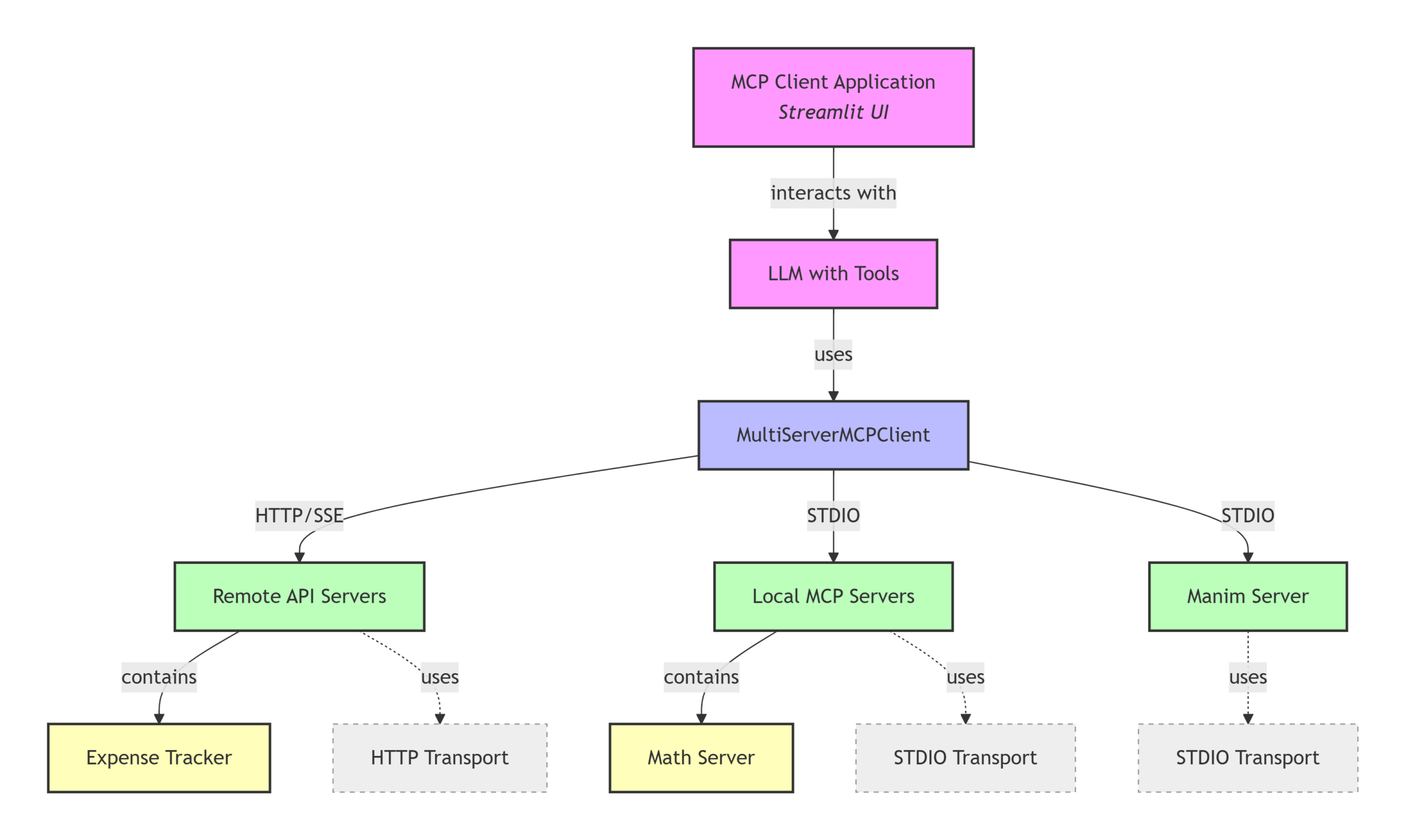
- Multi-Server Integration: Connect your chatbot to a Math server, an Expense Tracker, and a Manim visualization server all at once.
- Local & Remote Flexibility: Mix local tools on your machine with remote APIs.
- Custom Logic: You can handle normal conversation and complex tool-assisted queries in a single flow by checking if the LLM response contains
tool_calls
Building MCP Clients Quiz #
Q.1 When building an MCP client that communicates with multiple MCP servers simultaneously, which class from the langchain_mcp_adapters library is recommended?
SingleServerClient.
MCPTransportManager.
LangChainMCPWrapper.
MultiServerMCPClient.
Explanation
MultiServerMCPClient allows a single MCP client to connect to and manage multiple MCP servers simultaneously, making it easy to access tools from different servers within one application.
Q.2 Which transport method is commonly used for communication between a local MCP client and a local MCP server?
WebSocket.
STDIO.
gRPC.
HTTP POST.
Explanation
STDIO (Standard Input/Output) is commonly used for local MCP servers because both the client and server run on the same machine and communicate through input and output streams.
Q.3 Why does the tutorial use the langchain-mcp-adapters library instead of the official MCP Python library?
It is the only Python library available.
It provides a lightweight wrapper that integrates naturally with LangChain and LangGraph.
The official MCP library cannot connect to remote servers.
It executes significantly faster.
Explanation
The langchain-mcp-adapters library provides seamless integration with LangChain and LangGraph, allowing developers to use MCP tools directly inside existing AI workflows.
Q.4 Why must the command and args fields be provided when configuring a local MCP server?
To allow the client to launch the MCP server process automatically when needed.
To authenticate the user.
To download the server from the internet.
To define mathematical formulas.
Explanation
For local servers, the client needs to know which executable to start and what arguments to pass so it can automatically launch the MCP server before communicating with it.
Q.5 After the LLM decides to call a tool, what happens before the final answer is generated?
The client executes the tool and sends the result back to the LLM inside a ToolMessage.
The client restarts the MCP server.
The client manually verifies the result.
The user must approve the tool call in the terminal.
Explanation
The MCP client invokes the requested tool, packages the result inside a ToolMessage, and sends it back to the LLM so it can generate the final response using the retrieved information.
Q.6 Why was the implementation changed from accessing only the first tool call to looping through all tool calls?
To avoid crashes when no tools exist.
To connect to more servers.
To improve calculation speed.
Because the LLM may request multiple tool executions for a single prompt.
Explanation
Modern LLMs can generate multiple tool calls in one response. Looping through all tool_calls ensures every requested tool is executed before producing the final answer.
Q.7 Which transport protocol is used for the Remote Expense Tracker MCP server demonstrated in the tutorial?
SSE (Server-Sent Events).
UDP.
FTP.
STDIO.
Explanation
The remote Expense Tracker server communicates using Server-Sent Events (SSE), allowing streamed communication between the remote MCP server and the client.
Q.8 What is the purpose of the tool_call_id when creating a ToolMessage?
It identifies the user.
It acts as a password.
It selects the tool version.
It allows the LLM to associate the returned result with the correct tool request.
Explanation
The tool_call_id uniquely identifies the original tool request so the LLM knows which returned result belongs to which tool invocation, especially when multiple tools are called.
Q.9 What is the purpose of the bind_tools() method?
It merges server code into the client.
It encrypts communication.
It generates a Streamlit interface.
It informs the LLM about available tools and their schemas so it can decide when to use them.
Explanation
bind_tools() registers the available tools with the LLM, including their names, descriptions, and input schemas, enabling intelligent tool selection during inference.
Q.10 If a user asks 'What is the capital of India?' how does the MCP client avoid unnecessary tool execution?
It forces the math server to answer.
It checks whether the LLM returned any tool_calls, and if none exist, it simply returns the generated text response.
It switches to another LLM.
It automatically uses the Manim server.
Explanation
The implementation first checks whether the LLM response contains any tool_calls. If none are present, the client directly returns the LLM’s textual answer without invoking any MCP tools.


