Developing a custom WordPress plugin is the best way to extend core site functionality without modifying theme files. Before diving into AI-assisted coding tools or complex frameworks, mastering basic plugin structure and requirements is essential for every developer.
1. Why Build a WordPress Plugin? #
By default, WordPress provides a limited set of core features. While themes manage layout and visual presentation, plugins extend core functionality. Common examples include adding contact forms (such as Contact Form 7 or WPForms), configuring SEO settings, or transforming a site into an e-commerce store using WooCommerce. You can also build add-ons and extensions that enhance existing third-party plugins like Elementor or WooCommerce.
2. Setting Up Your Project Directory #
To keep your project organized, sophisticated plugins should reside in a dedicated directory rather than a single standalone file.
- Locate the Plugins Directory: Open your local installation folder at
wp-content/plugins/.
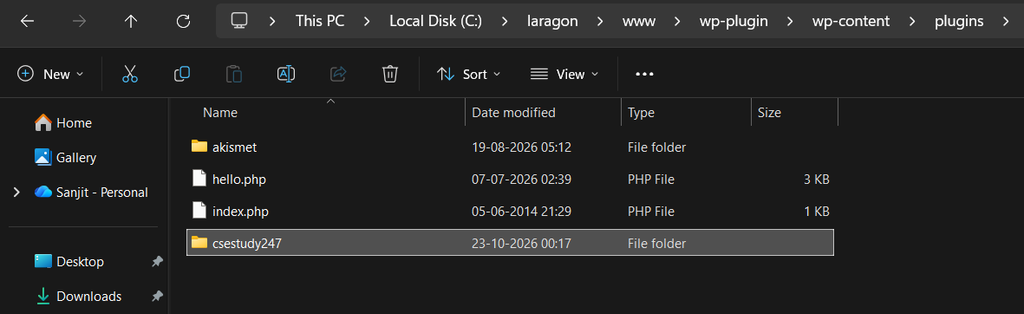
- Create a Unique Folder: Choose a lowercase name with no spaces, using hyphens to separate words (e.g.,
csestudy247-plugin). - Verify Slug Availability: If you plan to publish on the official repository, ensure your slug isn’t already taken by checking
wordpress.org/plugins/your-slug.
3. Creating the Main Plugin File #
Inside your new directory, create a PHP file using the exact same name as your folder (e.g., csestudy247-plugin.php). This file acts as the primary entry point for WordPress to load your plugin.
4. Writing the Required Plugin Header #
WordPress identifies a plugin using a standardized PHP Comment Header block inside the main file.
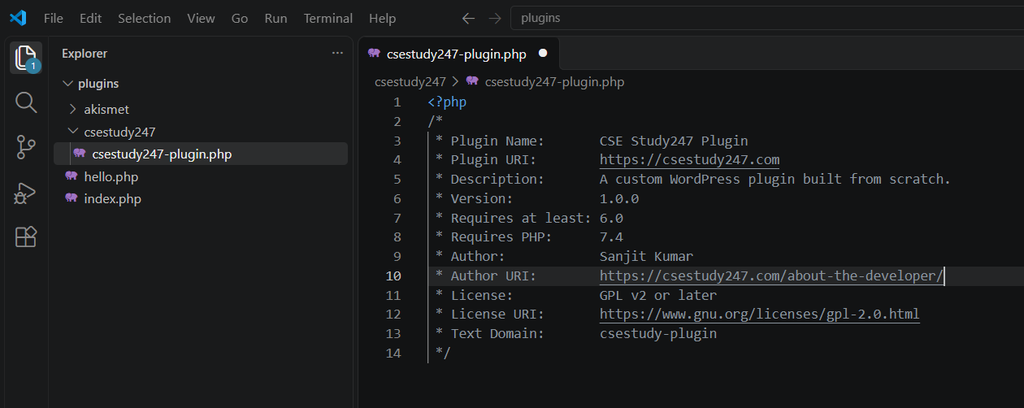
Open csestudy247-plugin.php and add the PHP opening tag along with the essential header comments:
<?php
/*
 * Plugin Name:       CSE Study247 Plugin
 * Plugin URI:        https://csestudy247.com
 * Description:       A custom WordPress plugin built from scratch.
 * Version:           1.0.0
 * Requires at least: 6.0
 * Requires PHP:      7.4
 * Author:            Sanjit Kumar
 * Author URI:        https://csestudy247.com/about-the-developer/
 * License:           GPL v2 or later
 * License URI:       https://www.gnu.org/licenses/gpl-2.0.html
 * Text Domain:       csestudy-plugin
 */
5. Key Header Fields Explained #
Understanding each field in the header ensures your plugin functions correctly and meets repository standards:
- Plugin Name & Description: Displayed directly on the WordPress admin plugins dashboard.
- 3-Digit Versioning: Follow standard semantic versioning (
1.0.0). Use the third digit for minor bug patches (1.0.1), the second for feature releases (1.1.0), and the first for major overhauls (2.0.0). - PHP & WordPress Requirements: Define minimum PHP (e.g.,
7.4or8.x) and WordPress versions to avoid execution errors on older server environments. - Text Domain: A unique string identifier (e.g.,
csestudy247-plugin) required for multi-lingual translation support. Mismatched text domains are a primary reason plugins get rejected during official repository reviews. - Requires Plugins (Dependency Check): A modern header tag that allows you to list required parent plugin slugs (e.g.,
woocommerce). If a required parent plugin is missing, WordPress halts activation and prompts the user with an admin notice.
6. Activating Your Plugin #
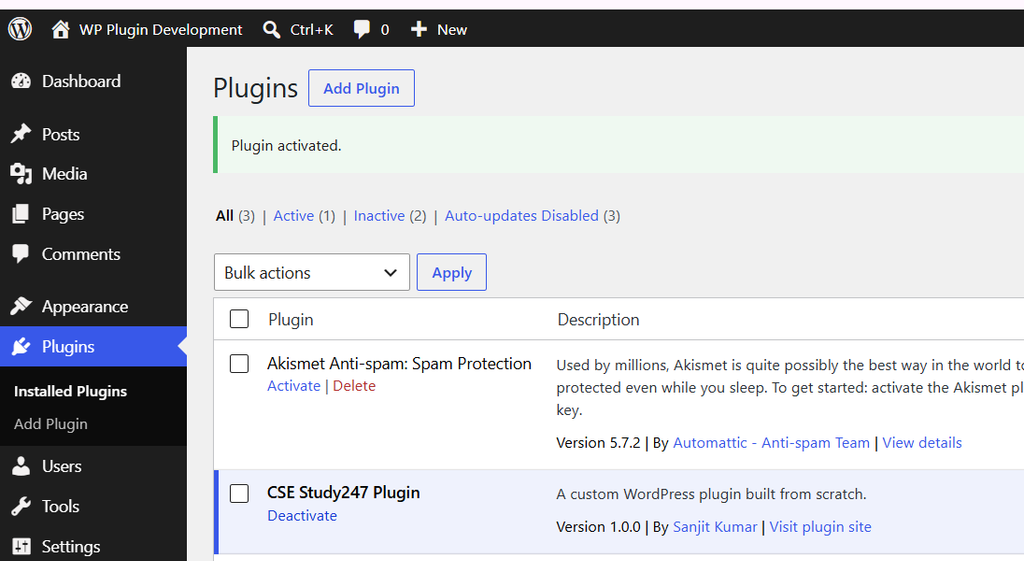
After saving the main file with its header comments, navigate to Plugins > Installed Plugins in the WordPress admin panel. Your custom plugin will appear in the list displaying its name, version, description, and author details. Click Activate to enable it on your site.