The Model Context Protocol (MCP) is revolutionizing how we interact with AI by allowing Large Language Models (LLMs) to connect with local tools and data. In this guide, we will walk through the process of building a Local MCP Server from scratch using FastMCP, a developer-friendly library that simplifies the entire process.
Why FastMCP? The Evolution of the Ecosystem #
- When Anthropic first released the MCP SDK, it was quite verbose and required significant “boilerplate” code, making it difficult for beginners to build even simple tools.
- To solve this, Jeremiah Lowin (CEO of Prefect) created FastMCP as an abstraction layer.
FastMCP is to MCP what Flask or FastAPI is to web development: it hides the low-level complexity of the protocol, allowing you to focus on your logic. Today, FastMCP is an independent, powerful library (v2.0) that has become the standard for building MCP servers.
Setting Up Your Environment #
Before coding, you need the right tools. FastMCP recommends using uv, a high-performance Python package manager.
- Install uv: Run
pip install uvin your terminal. - Initialize Project: Create a folder and run
uv init . - Install FastMCP: Add the library using
uv add fastmcp.
Virtual Environment Setup in Python: Using pip vs uv (Complete Guide) #
Python virtual environments allow you to create isolated environments for each project. This prevents dependency conflicts and ensures every project has its own packages and Python configuration.
In this guide, you’ll learn how to create and manage virtual environments using both the traditional pip + venv approach and the modern uv package manager.
Why Use a Virtual Environment? #
Without a virtual environment:
- All packages are installed globally.
- Different projects may require different package versions.
- Updating one package can break another project.
Virtual Environment Setup Using pip #
| Task | Command | Description |
|---|---|---|
| Create Virtual Environment | python -m venv .venv |
Create a virtual environment named .venv |
| Activate (Windows CMD) | .venv\Scripts\activate |
Activate the virtual environment in Command Prompt. |
| Activate (PowerShell) | .venv\Scripts\Activate |
Activate the virtual environment in PowerShell. |
| Activate (Linux/macOS) | source .venv/bin/activate |
Activate the virtual environment on Linux or macOS. |
| Verify Environment | python --version |
Ensure Python is running from the virtual environment. |
| Install Package | pip install package_name |
Install packages inside the virtual environment. |
| List Installed Packages | pip list |
Display all installed packages. |
| Deactivate | deactivate |
Exit the virtual environment and return to the system Python. |
Virtual Environment Setup Using uv #
| Task | Command | Description |
|---|---|---|
| Create Virtual Environment | uv venv |
Create a .venv virtual environment in the current project. |
| Activate (Windows CMD) | .venv\Scripts\activate |
Activate the virtual environment in Windows Command Prompt (CMD). |
| Activate (PowerShell) | .venv\Scripts\Activate |
Activate the virtual environment in Windows PowerShell. |
| Activate (Linux/macOS) | source .venv/bin/activate |
Activate the virtual environment in Linux or macOS. |
| Verify Environment | uv run python --version |
Verify that Python is running from the virtual environment. |
| Install Package | uv add package_name |
Install a package and automatically add it to pyproject.toml. |
| List Installed Packages | uv pip list |
Display all packages installed in the virtual environment. |
| Deactivate | deactivate |
Exit the virtual environment and return to the system Python. |
Building Your First Demo Server
To understand the workflow, we start with a simple “Demo Server” featuring two tools: a Dice Roller and an Addition Tool.
The Code Structure
Building a tool only requires two main steps: First, create a file like main.py and paste the code.
import random
from mcp.server.fastmcp import FastMCP

mcp = FastMCP("Demo Server")

@mcp.tool()
def roll_dice(n_dice: int) -> list[int]:
    return [random.randint(1, 6) for _ in range(n_dice)]

@mcp.tool()
def add_numbers(a: float, b: float) -> float:
    return a + b

if __name__ == "__main__":
    mcp.run()
Testing the Server
You can use the MCP Inspector, a debugging tool that acts like Postman but for MCP. Run uv run mcp dev main.py to launch the inspector and test your tools via a JSON-RPC interface.
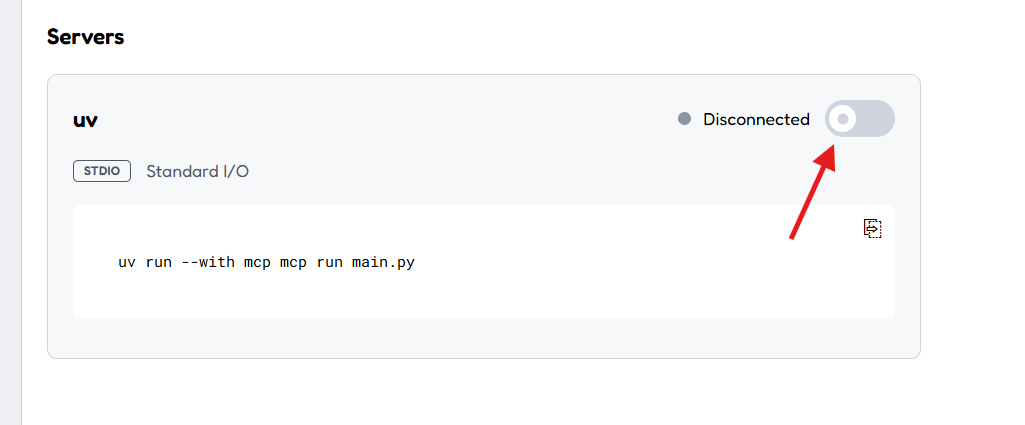
Click to connect
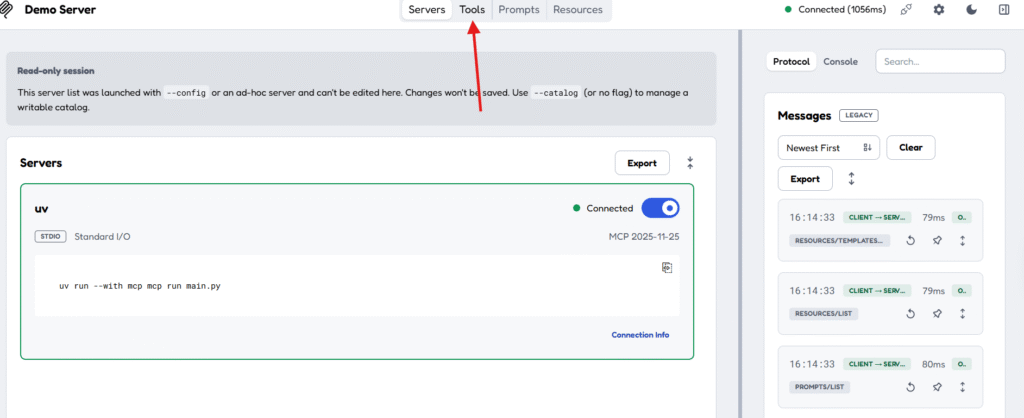
Click on the Tools
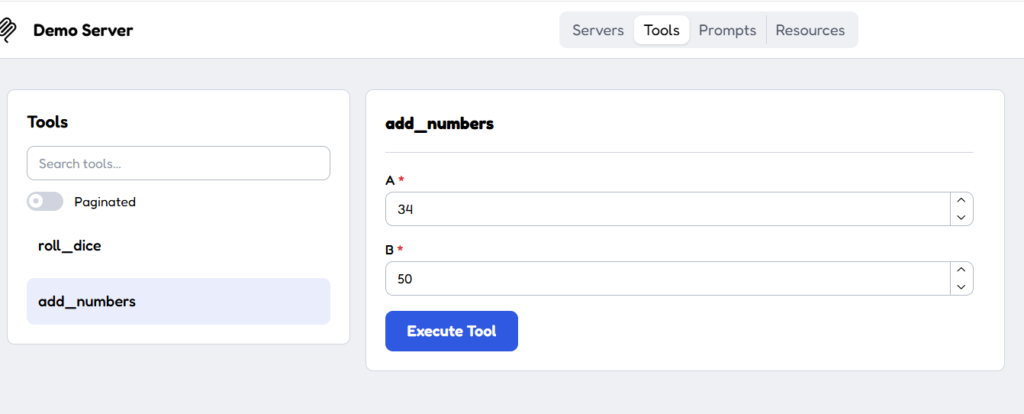
Click on the Execute Button, then output show
To connect Claude Desktop, use this command
uv run fastmcp install claude-desktop main.py and then ask to claude to calute using this tools roll_dice and add_number
Practical Project: The Expense Tracker #
The core of this guide is building an Expense Tracker that allows you to manage your finances through natural language.
from fastmcp import FastMCP
import os
import sqlite3

DB_PATH = os.path.join(os.path.dirname(__file__), "expenses.db")
CATEGORIES_PATH = os.path.join(os.path.dirname(__file__), "categories.json")

mcp = FastMCP("ExpenseTracker")

def init_db():
    with sqlite3.connect(DB_PATH) as c:
        c.execute("""
            CREATE TABLE IF NOT EXISTS expenses(
                id INTEGER PRIMARY KEY AUTOINCREMENT,
                date TEXT NOT NULL,
                amount REAL NOT NULL,
                category TEXT NOT NULL,
                subcategory TEXT DEFAULT '',
                note TEXT DEFAULT ''
            )
        """)

init_db()

@mcp.tool()
def add_expense(date, amount, category, subcategory="", note=""):
    '''Add a new expense entry to the database.'''
    with sqlite3.connect(DB_PATH) as c:
        cur = c.execute(
            "INSERT INTO expenses(date, amount, category, subcategory, note) VALUES (?,?,?,?,?)",
            (date, amount, category, subcategory, note)
        )
        return {"status": "ok", "id": cur.lastrowid}

@mcp.tool()
def list_expenses(start_date, end_date):
    '''List expense entries within an inclusive date range.'''
    with sqlite3.connect(DB_PATH) as c:
        cur = c.execute(
            """
            SELECT id, date, amount, category, subcategory, note
            FROM expenses
            WHERE date BETWEEN ? AND ?
            ORDER BY id ASC
            """,
            (start_date, end_date)
        )
        cols = [d[0] for d in cur.description]
        return [dict(zip(cols, r)) for r in cur.fetchall()]

@mcp.tool()
def summarize(start_date, end_date, category=None):
    '''Summarize expenses by category within an inclusive date range.'''
    with sqlite3.connect(DB_PATH) as c:
        query = (
            """
            SELECT category, SUM(amount) AS total_amount
            FROM expenses
            WHERE date BETWEEN ? AND ?
            """
        )
        params = [start_date, end_date]

        if category:
            query += " AND category = ?"
            params.append(category)

        query += " GROUP BY category ORDER BY category ASC"

        cur = c.execute(query, params)
        cols = [d[0] for d in cur.description]
        return [dict(zip(cols, r)) for r in cur.fetchall()]

@mcp.resource("expense://categories", mime_type="application/json")
def categories():
    # Read fresh each time so you can edit the file without restarting
    with open(CATEGORIES_PATH, "r", encoding="utf-8") as f:
        return f.read()

if __name__ == "__main__":
    mcp.run()
1. Database Setup
We use SQLite for simplicity, storing transactions in an expenses.db file. The schema includes id, date, amount, category, sub_category, and notes.
2. Core Features
- Add Expense: A tool that takes transaction details and inserts them into SQLite.
- List Expenses: An improved version of this tool allows filtering by start_date and end_date, enabling queries like “Show me my expenses for the first week of September”.
- Summarize: A tool that aggregates spending by category within a date range.
3. Enhancing Data Consistency with Resources
To prevent the LLM from creating messy categories (e.g., “Food” vs “Groceries”), we can add a Resource. By providing a JSON file containing predefined categories and sub-categories, we can force the AI to pick from a consistent list.
Integrating with Claude Desktop
Once your server is ready, you can integrate it directly into Claude Desktop so you can talk to your database.
- Installation Command: Run
uv run fastmcp install claude-desktop main.py. - Configuration Fix: Sometimes the
uvpath needs to be absolute. You can find your path withwhich uvand manually update the Claude configuration file if connection errors occur. - Usage: Once connected, you can simply type “Add 500 travel expense for a cab yesterday,” and the server will process the entry automatically.
Advanced: FastMCP and FastAPI Compatibility
One of the most powerful features of FastMCP is its relationship with FastAPI. They share a similar design philosophy, and FastMCP allows you to convert an existing FastAPI application into an MCP server with a single line of code: FastMCP.from_fastapi(app).
This is a massive benefit for companies that already have internal APIs; they can expose their existing services to LLMs like Claude without rewriting their entire backend.
Conclusion #
Building local MCP servers with FastMCP turns a complex protocol into a manageable task for any Python developer. By leveraging tools, resources, and easy integration, you can build personalized AI assistants that have real-world utility in your daily life.
MCP Servers Quiz #
Q.1 What primary problem does the FastMCP library solve compared to using the official MCP Python SDK directly?
It allows the server to run without a network connection.
It is the only way to connect an MCP server to Claude Desktop.
It provides a higher-level abstraction that reduces verbose boilerplate code.
It eliminates the need for any Python environment setup.
Explanation
FastMCP is a high-level abstraction built on top of the MCP ecosystem that significantly reduces boilerplate code, allowing developers to build MCP servers with much less code.
Q.2 Which command is recommended by FastMCP for debugging an MCP server locally using MCP Inspector?
pip install mcp-inspector
python inspector.py –local
uv run mcp debug main.py
uv run fastmcp dev main.py
Explanation
The command ‘uv run fastmcp dev main.py’ launches the MCP Inspector in development mode, making it easy to test and debug MCP servers locally.
Q.3 Which Python decorator exposes a function as an MCP Tool in FastMCP?
@mcp.action()
@mcp.tool()
@mcp.function()
@mcp.resource()
Explanation
The @mcp.tool() decorator registers a Python function as an MCP Tool so that LLMs can invoke it through the Model Context Protocol.
Q.4 Why might you need to specify the absolute path to the 'uv' executable when connecting a local MCP server to Claude Desktop?
Claude Desktop may not have access to the system PATH environment variable.
FastMCP requires absolute paths for security.
SQLite requires an absolute path.
JSON-RPC requires absolute paths.
Explanation
Claude Desktop may not inherit the user’s PATH environment variable, so providing the absolute path ensures it can locate and execute the uv command successfully.
Q.5 What is the primary benefit of adding a Resource such as a JSON file to an Expense Tracker MCP server?
It encrypts communication with the LLM.
It provides a consistent list of categories and subcategories for the LLM to use.
It stores receipt images.
It improves SQLite query performance.
Explanation
A Resource supplies structured reference data that helps the LLM consistently categorize expenses instead of inventing different category names each time.
Q.6 According to the source, how is the relationship between the official MCP SDK and FastMCP defined as of 2025?
FastMCP has been deprecated.
FastMCP is the paid enterprise edition of the SDK.
They are independent libraries, with FastMCP 2.0 existing as a standalone abstraction.
They have merged into a single library.
Explanation
FastMCP 2.0 is an independent high-level framework that simplifies MCP development, while the official MCP SDK provides the lower-level protocol implementation.
Q.7 Which FastMCP method allows existing FastAPI endpoints to be exposed as MCP tools?
app.to_mcp()
mcp.integrate_api(url)
FastMCP.from_fastapi(app)
FastMCP.convert_routes(routes)
Explanation
FastMCP.from_fastapi(app) automatically converts FastAPI endpoints into MCP-compatible tools, allowing developers to reuse existing APIs without rewriting them.
Q.8 Why is the stdio transport commonly used for local MCP servers?
It is the only transport compatible with SQLite.
It enables communication through standard input and standard output between processes running on the same machine.
It automatically converts Python into JSON.
It is always faster than network communication.
Explanation
The stdio transport uses standard input and output streams to exchange JSON-RPC messages between the Host and the MCP Server, making it ideal for local integrations such as Claude Desktop.
Q.9 Why do many developers prefer FastMCP over the official MCP SDK for new projects?
It removes the need for Python.
It offers a simpler, more Pythonic developer experience while still producing MCP-compatible servers.
It only supports remote servers.
It replaces the JSON-RPC protocol.
Explanation
FastMCP provides decorators, automatic registration, and high-level abstractions that make MCP server development much faster while remaining fully compatible with the MCP specification.
Q.10 Which statement best describes the relationship between FastMCP and the MCP protocol?
FastMCP replaces the MCP protocol.
FastMCP is a higher-level framework that implements the MCP protocol while simplifying development.
FastMCP only works with Claude Desktop.
FastMCP is a transport protocol similar to stdio.
Explanation
FastMCP is a developer-friendly framework that abstracts away much of the MCP boilerplate while still producing standards-compliant MCP servers that work with compatible clients.


