Introduction #
After understanding why the Model Context Protocol (MCP) exists and how its architecture works, the next logical step is learning how to connect MCP servers to an AI client.
One of the most popular MCP-compatible clients today is Claude Desktop. It allows you to connect local tools, cloud services, and custom applications through the Model Context Protocol.
There are two primary ways to connect an MCP server to Claude Desktop:
- Using Connectors (the easiest method)
- Using a JSON configuration file (the developer-friendly method)
This guide explains both approaches, when to use each one, and demonstrates how to connect both local and remote MCP servers.
What is Claude Desktop? #
Claude Desktop is Anthropic’s desktop application that can communicate with external tools through the Model Context Protocol (MCP).
Instead of limiting the AI to only answering questions, MCP enables Claude to interact with:
- Local files
- Git repositories
- Databases
- Google Drive
- Slack
- GitHub
- Weather APIs
- Custom company tools
- Thousands of community-built MCP servers
Think of Claude Desktop as the host, while MCP servers provide the tools and data Claude can access.
Two Ways to Connect MCP Servers #
There are two methods for connecting Claude Desktop with MCP servers.
Method 1: JSON Configuration (Developer Method) #
This is the standard and most flexible approach.
You manually edit Claude Desktop’s configuration file:
claude_desktop_config.json
Inside this file, you define:
- Server name
- Command to execute
- Runtime
- Arguments
- Environment variables
- API keys
Example structure:
{
  "mcpServers": {
    "weather": {
      "command": "uvx",
      "args": [
        "weather-server"
      ]
    }
  }
}
Once Claude Desktop restarts, it automatically launches the configured server and communicates with it through the MCP protocol.
Advantages #
- Supports any custom MCP server
- Full control over configuration
- Works with private company tools
- Ideal for developers
- Highly customizable
Limitations #
- Requires editing JSON manually
- Requires installing dependencies
- Requires knowing the correct executable path
- API keys often need to be configured manually
Method 2: Connectors (App Store Experience) #
Connectors provide the easiest way to add tools.
Instead of editing configuration files, you simply click Connect inside Claude Desktop.
Examples include:
- Google Drive
- Slack
- Notion
- GitHub
- Gmail
The connector automatically handles:
- Authentication
- OAuth login
- API configuration
- Secure token management
The user only grants permission once.
Advantages #
- One-click setup
- No coding required
- Automatic updates
- Secure authentication
- Better user experience
Why Doesn’t Everything Use Connectors? #
This is one of the most common questions about MCP.
Imagine thousands of developers building new MCP servers every day.
Examples include:
- Robotics controllers
- Local Python tools
- Company databases
- AI pipelines
- Research software
- Internal dashboards
Anthropic cannot build and maintain connectors for every possible tool.
Instead, MCP remains an open standard, allowing anyone to create an MCP server and connect it using a simple JSON configuration.
This makes the ecosystem scalable and developer-friendly.
Local MCP Servers #
Local servers run directly on your own computer.
Claude communicates with them without sending requests to an external cloud service.
Let’s look at two popular examples.
Example 1: File System MCP Server (Connector) #
The File System MCP Server allows Claude Desktop to access selected folders on your computer.
For security reasons, Claude cannot access your entire computer.
Instead, you explicitly grant access to specific directories, such as:
- Desktop
- Downloads
- Documents
- Projects
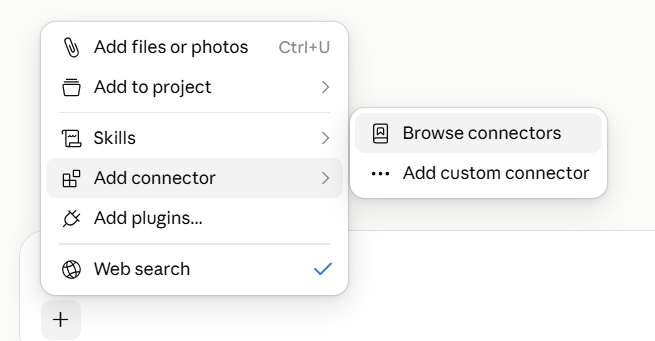
Step First Click on the Add Connector next click on Browser connector and already build by anthropic team and i own or remove then second option choose Below I will give you to Local file system acess.
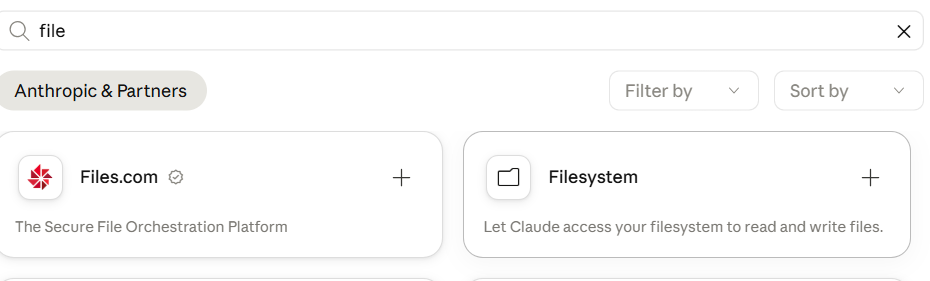
Step2:- Click on the file system
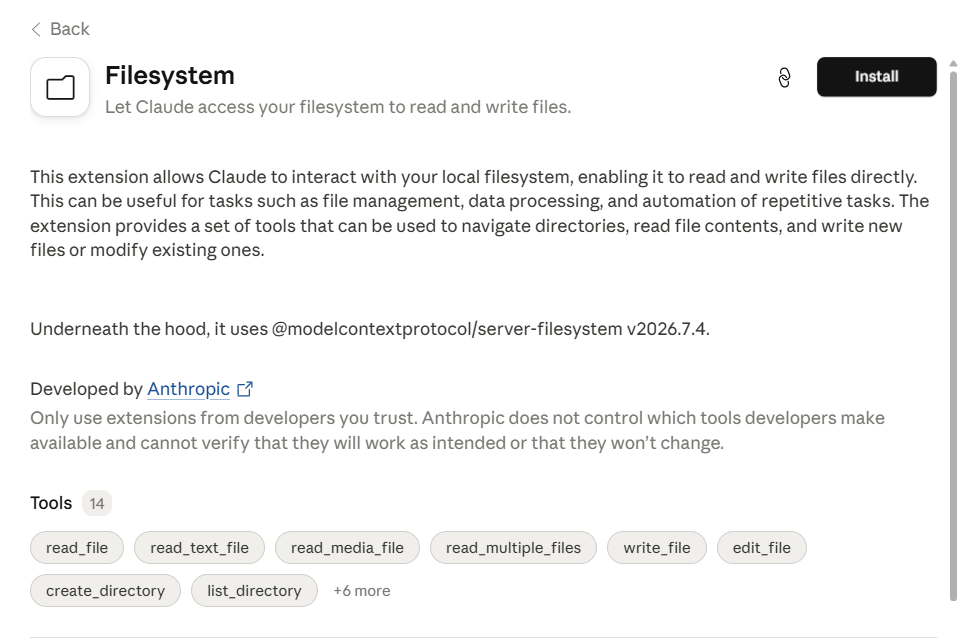
Step3: Click on the Install button
After Enable Button click
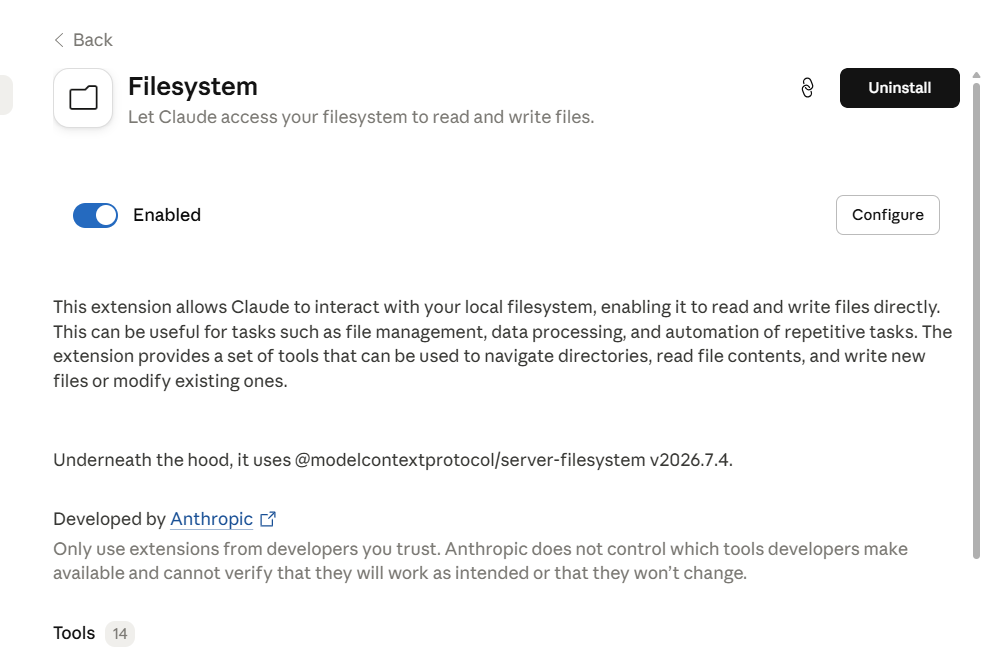
Step4: Next, go to the Connectors section and give the file, which allows AI access to a particular folder and project, or if Apper just when install file then add, file path or File Location or Select and click Save button.
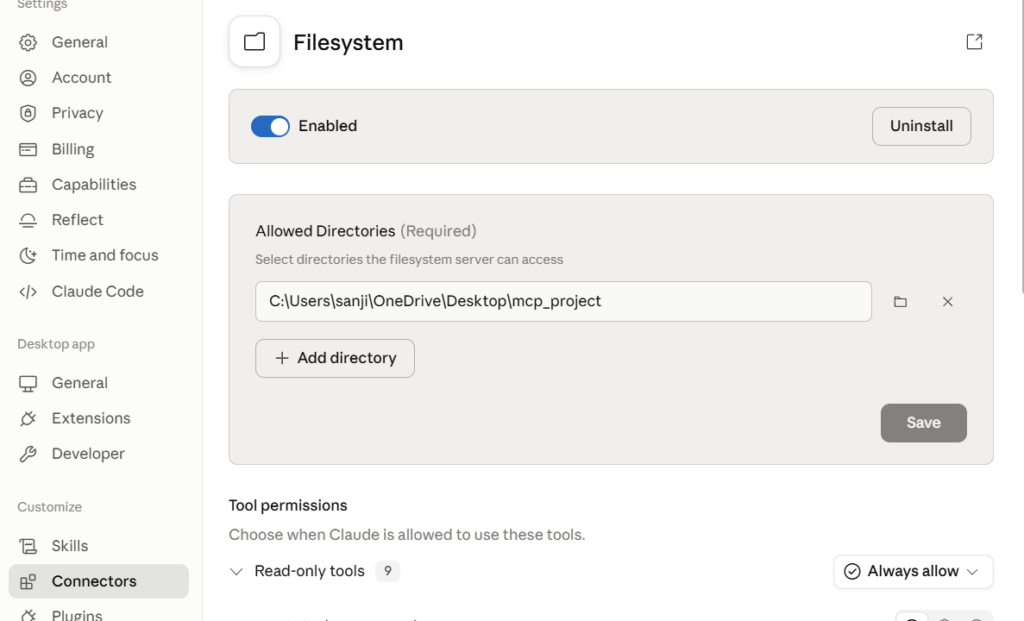
Next, close Claude Desktop and open it again, and ask any question regarding the file listed below. If file access to Claude is not available, then a one-time system restart is needed, and then it will work.
If there are more issues, such as not accessing your file, then use a prompt like this: Use the Filesystem integration. Then give any instruction; this will solve the issue
Now read my file, Claude AI
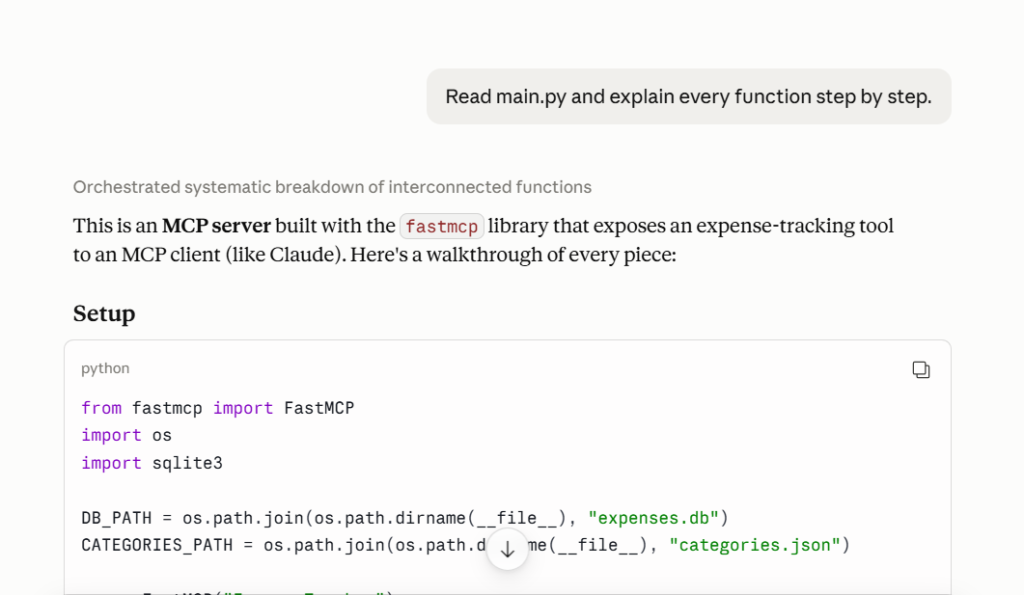
After granting permission, Claude can:
- Search files
- Read documents
- Create files
- Save generated code
- Organize folders
- Locate PDFs
- Analyze datasets
Example prompt:
Find every Python file inside my Projects folder that uses FastAPI.
Another example:
Save the generated React application inside my Desktop folder.
This makes Claude behave like a true development assistant.
Example 2: Manim MCP Server (JSON Configuration) #
Prerequisites #
Ensure you have the following installed:
- Python 3.8+
- Manim (Community Version)
- MCP
Install Manim #
pip install manim
Install MCP #
pip install mcp
Clone the Repository #
git clone https://github.com/abhiemj/manim-mcp-server.git
cd manim-mcp-server
Integration with Claude #
To integrate the Manim MCP server with Claude, add the following to your claude_desktop_config.json file:
{
  "mcpServers": {
     "manim-server": {
      "command": "/absolute/path/to/python",
      "args": [
        "/absolute/path/to/manim-mcp-server/src/manim_server.py"
      ],
      "env": {
        "MANIM_EXECUTABLE": "/Users/[Your_username]/anaconda3/envs/manim2/Scripts/manim.exe"
      }
    }
  }
}
Finding Your Python Path #
To find your Python executable path, use the following command:
Windows (PowerShell): #
(Get-Command python).Source
Windows (Command Prompt/Terminal): #
Linux/macOS (Terminal): #
This ensures that Claude can communicate with the Manim MCP server to generate animations dynamically.
Step 6: Claude Desktop Setup #
First click on Settings, then Developer, and then finally click on Editonfig as these type of code see, but you need to add MCP Code like below only change your Project python execute path
{
  "coworkUserFilesPath": "C:\\Users\\sanjit\\Claude",

  "mcpServers": {
    "manim-server": {
      "type": "stdio",
      "command": "C:\\Users\\sanjit\\OneDrive\\Desktop\\mcp_project\\venv\\Scripts\\python.exe",
      "args": [
        "C:\\Users\\sanjit\\OneDrive\\Desktop\\mcp_project\\manim-mcp-server\\src\\manim_server.py"
      ],
      "env": {
        "MANIM_EXECUTABLE": "C:\\Users\\sanjit\\OneDrive\\Desktop\\mcp_project\\venv\\Scripts\\manim.exe"
      }
    }
  },

  "preferences": {
    "launchPreviewPersistedWorkspaces": [],
    "launchPreviewSessionScopedSessions": [],
    "coworkScheduledTasksEnabled": false,
    "coworkHipaaRestricted": false,
    "ccdScheduledTasksEnabled": false,
    "bypassPermissionsGateByAccount": {
      "ea94ca3d-6633-4337-80e9-64500e9bb237": false
    },
    "coworkWebSearchEnabled": true,
    "coworkModelAutoFallbackByAccount": {
      "ea94ca3d-6633-4337-80e9-64500e9bb237": true
    },
    "remoteToolsDeviceName": "sanjit-kumar",
    "epitaxyPrefs": {
      "starred-local-code-sessions": [],
      "starred-cowork-spaces": [],
      "starred-session-groups": [],
      "ccd-sessions-filter": {
        "state": {
          "selectedProjects": []
        },
        "version": 0
      },
      "desktop-frame.paneStore.v1": {
        "state": {
          "extraPanesByMode": {},
          "colWeightsByMode": {},
          "rowSplit": 0.5,
          "draftNonce": 0
        },
        "version": 4
      },
      "dframe-group-scopes": {},
      "dframe-local-slice": {
        "pinnedOrder": [],
        "homeProjectsPinnedOrder": []
      }
    }
  }
}
After saving claude_desktop_config.json, completely close Claude Desktop and reopen it.
Claude loads MCP servers only during startup. Next Restart Claude Desktop
Step 7: Verify the Connection #
Ask Claude a simple question such as:
What MCP tools are available?
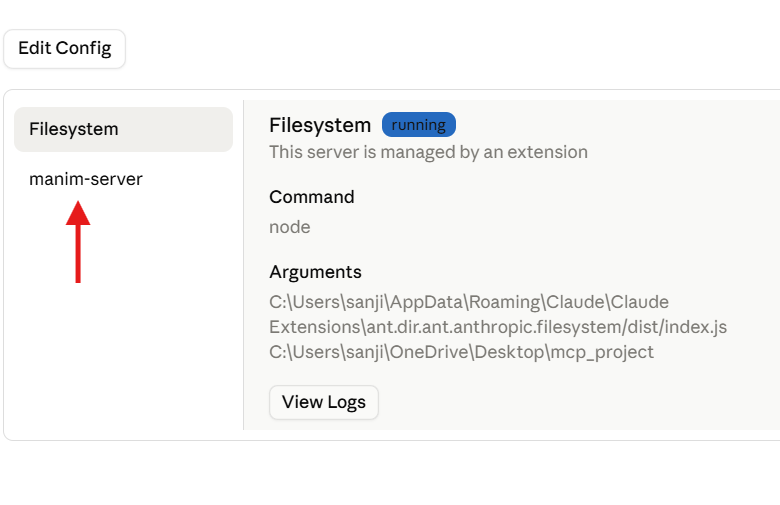
or
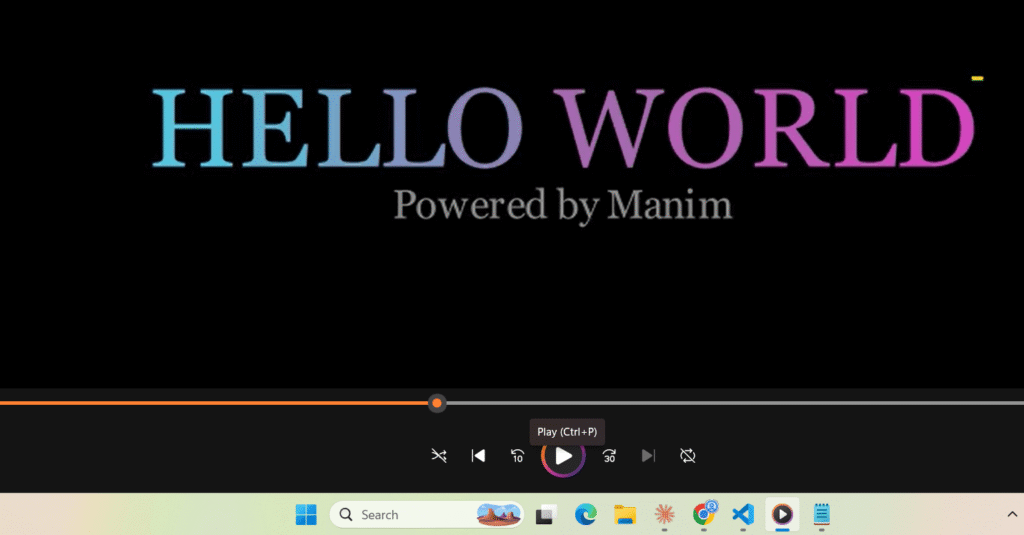
Create a simple “Hello World” Manim animation. command give to the claude.
If the server is configured correctly, Claude will invoke the Manim MCP server instead of responding with plain text.
Common Configuration Issues #
| Issue | Solution |
|---|---|
| Server not detected | Verify the Python executable and server.py paths in claude_desktop_config.json. |
FileNotFoundError | Ensure the specified server file exists at the configured location. |
| Python module errors | Activate the virtual environment and reinstall the required dependencies. |
| MCP server timeout | Start the server manually to inspect error messages and ensure it launches successfully. |
| Changes not applied | Restart Claude Desktop after modifying the configuration file. |
Remote MCP Servers #
Unlike local servers, remote MCP servers run on the internet.
Claude communicates with them through network requests.
Example 1: Google Drive Connector #
Google Drive is available as an official connector.
Setup only requires signing in with your Google account.
Once connected, Claude can:
- Read documents
- Summarize PDFs
- Search files
- Analyze spreadsheets
- Extract meeting notes
- Review reports
Example prompt:
Summarize all meeting notes stored in my Google Drive.
No manual file uploads are required.
Example 2: Weather MCP Server (JSON Configuration) #
A Weather MCP server can retrieve live weather information using an external weather API.
Many implementations use UVX to run an MCP server hosted on GitHub.
Configuration generally includes:
- UVX command
- GitHub repository
- Weather API key (for example, AccuWeather)
- Server arguments
After configuration, Claude can answer questions like:
What’s the weather in New York tomorrow?
or
Compare this week’s temperatures between Delhi and Bangalore.
Because the server accesses live APIs, the responses remain current.
Connector vs JSON Configuration #
| Feature | Connectors | JSON Configuration |
|---|---|---|
| Easy Setup | ✅ | ❌ |
| Coding Required | ❌ | ✅ |
| OAuth Handling | Automatic | Manual |
| API Keys | Usually Automatic | Manual |
| Custom Servers | ❌ | ✅ |
| Enterprise Tools | Limited | Excellent |
| Local Development | Limited | Excellent |
| Flexibility | Medium | Very High |
Discovering New MCP Servers #
The MCP ecosystem is expanding rapidly.
New servers appear almost daily for:
- AI development
- DevOps
- Cloud platforms
- Productivity
- Databases
- Creative tools
- Automation
- Robotics
- Research
One of the best places to discover community-built MCP servers is the Awesome MCP Servers GitHub repository.
It categorizes hundreds of servers by purpose, making it easy to find tools for your workflow.
Popular categories include:
- Databases
- Developer Tools
- Web Browsers
- AI Models
- Productivity
- File Systems
- Finance
- Design
- Cloud Platforms
- Communication
Best Practices #
Before connecting any MCP server:
- Only install servers from trusted sources.
- Grant the minimum permissions required.
- Keep API keys secure using environment variables.
- Regularly update your MCP servers.
- Review configuration files before sharing them.
- Use connectors when available for a simpler and more secure experience.
Conclusion #
Claude Desktop provides a powerful gateway to the Model Context Protocol ecosystem.
If you want the simplest experience, Connectors allow you to integrate popular services like Google Drive, Slack, and Notion with just a few clicks.
If you need maximum flexibility, JSON configuration lets you connect virtually any MCP server—whether it runs locally on your computer or remotely in the cloud.
As the MCP ecosystem continues to grow, developers and AI enthusiasts can extend Claude far beyond traditional chat capabilities, enabling workflows such as code generation, file management, document analysis, live weather retrieval, automation, and much more.
Whether you’re a beginner exploring AI tools or an experienced developer building custom integrations, understanding both connection methods is essential for making the most of the Model Context Protocol.
Q.1 What is the primary role of Connectors in the context of Claude Desktop and MCP?
They serve as built-in features that link Claude to servers automatically without manual JSON edits.
They are configuration files that users must manually edit.
They are external hardware devices for connecting AI models.
They are AI models that translate natural language into server code.
Explanation
Connectors provide a simple graphical way to connect Claude Desktop with supported MCP servers without requiring users to manually edit configuration files.
Q.2 Why doesn't Anthropic create a Connector for every available MCP server?
Only remote servers are allowed to have connectors.
JSON configuration always performs better.
Maintaining connectors for every server would be impractical and would conflict with MCP's open-standard philosophy.
Connectors are less secure than manual configuration.
Explanation
Since MCP is an open standard with thousands of community-built servers, Anthropic cannot realistically maintain connectors for all of them. Instead, developers can connect any compliant server using manual configuration.
Q.3 Why must users specify a directory path when configuring the File System MCP server?
To improve AI processing speed.
To restrict the AI's access to only approved folders for security.
To avoid administrator permissions.
Because MCP only supports one folder.
Explanation
The File System MCP server requires explicit directory paths so the AI can access only approved folders, protecting the rest of the user’s file system from unauthorized access.
Q.4 Which Python library is used by an MCP server to generate mathematical animations similar to those created by 3Blue1Brown?
NumPy.
Matplotlib.
Manim.
TensorFlow.
Explanation
Manim (Mathematical Animation Engine) is the Python library used to create high-quality mathematical animations similar to those seen on the 3Blue1Brown YouTube channel.
Q.5 What must a user do after adding a new MCP server to the Claude Desktop configuration file?
Restart the operating system.
Clear the browser cache.
Reinstall Python.
Restart the Claude Desktop application.
Explanation
Claude Desktop only loads MCP server configurations during startup, so restarting the application is required before newly added servers become available.
Q.6 What is one major advantage of MCP Connectors for non-technical users?
They automatically create custom MCP servers.
They eliminate the need to understand JSON configuration files for supported integrations.
They remove the requirement for MCP Servers.
They convert local servers into cloud services.
Explanation
Connectors provide a graphical installation experience for supported MCP integrations, allowing users to connect services without manually writing or editing JSON configuration files.
Q.7 Anthropic's Google Drive Connector is described as Read-Only. What does this mean?
The AI can only read file titles.
The AI cannot read image-based documents.
The AI can read and analyze files but cannot create, edit, or delete them.
The AI only works with previously opened files.
Explanation
A read-only connector allows the AI to retrieve and analyze information stored in Google Drive while preventing any changes such as creating, editing, moving, or deleting files.
Q.8 Why was the Weather MCP server demonstrated as a Remote Server?
It was executed directly from a remote package using the uvx command instead of running local source code.
It requires satellite communication.
It uses an external weather API.
It only works for international locations.
Explanation
The Weather MCP server was launched directly from a remote package using uvx, eliminating the need to clone or install the server locally before using it.
Q.9 What is the main advantage of using Connectors instead of manually editing MCP JSON configuration files?
They permanently eliminate API keys.
They provide a simpler, user-friendly setup experience with fewer configuration errors.
They increase LLM accuracy.
They replace MCP Servers entirely.
Explanation
Connectors simplify the setup process by providing an easy interface for installing supported MCP integrations, reducing manual configuration mistakes and making MCP accessible to more users.
Q.10 What is 'Awesome MCP Servers'?
A curated GitHub repository for discovering community-built MCP servers.
An official Anthropic marketplace.
A paid subscription service.
A command-line debugging tool.
Explanation
Awesome MCP Servers is a community-maintained GitHub repository that collects and categorizes hundreds of MCP servers, making it easier for developers to discover useful integrations.


